

Apply Branding#
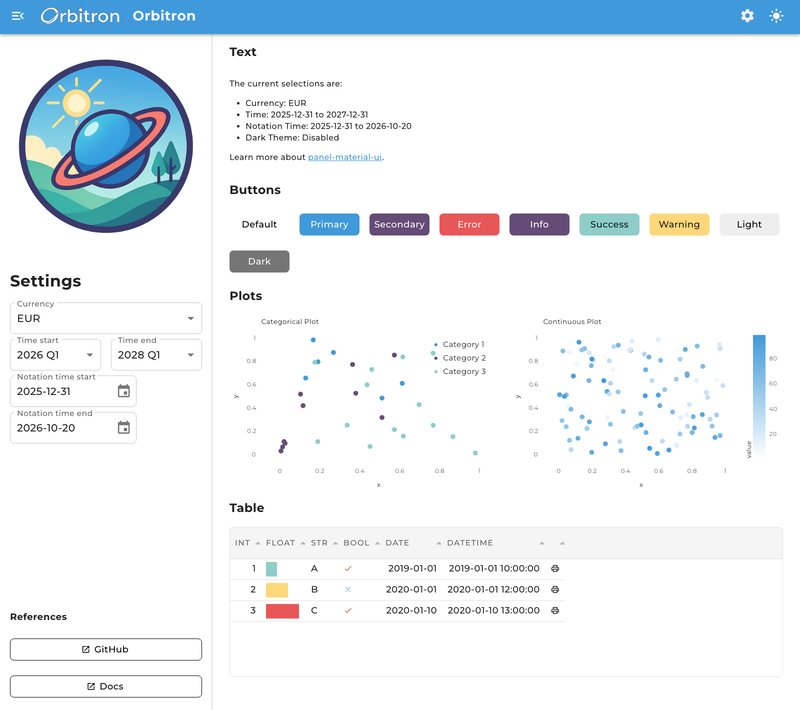
This guide shows how to create a cohesive brand experience in a panel.ui application, using the fictional “Orbitron” brand as an example. You will learn how to structure your brand assets, configure consistent theming and apply your brand across all components.
Overview#
A branded Panel application combines:
Custom color palettes for the light and dark themes
Typography and visual styling
Brand asset management
Component theming
Layouts that keep the brand consistent
1. Brand architecture#
Start by organizing your brand assets in a dedicated package:
your_app/
├── app.py                 # Main application
└── brand/                 # Brand package
    ├── __init__.py
    ├── colors.py          # Color definitions
    ├── mui.py             # Theme configuration
    └── assets/            # Brand assets
        ├── __init__.py
        ├── logo.png
        ├── favicon.ico
        └── style.css
This keeps your brand configuration separate from your application logic, which makes it easy to maintain, update and share between applications.
2. Color system#
Define your brand colors in a dataclass, so they live in one place and cannot be modified by accident:
# brand/colors.py
from dataclasses import dataclass

import panel as pn


@dataclass(frozen=True)
class ThemeColors:
    """Container for theme color definitions."""
    primary: str = "#4099da"
    secondary: str = "#644c76"
    success: str = "#8ecdc8"
    error: str = "#e85757"
    warning: str = "#fdd779"
    info: str = "#644c76"

# Define light and dark theme variants
LIGHT_THEME = ThemeColors()
DARK_THEME = ThemeColors(
    primary=LIGHT_THEME.secondary,
    secondary=LIGHT_THEME.primary,
)

def get_colors(dark_theme: bool = False) -> ThemeColors:
    return DARK_THEME if dark_theme else LIGHT_THEME
Note
The theme palette expects colors as hex, rgb() or hsl() strings. CSS color names such as "steelblue" are not supported.
Then add utility functions for your visualizations, built on the pn.ui.theme.generate_palette and pn.ui.theme.linear_gradient helpers:
def get_categorical_palette(dark_theme: bool = False, n_colors: int = 20) -> list[str]:
    """Get a categorical color palette based on the theme."""
    colors = get_colors(dark_theme)
    palette = [colors.primary, colors.secondary, colors.success, colors.warning, colors.error]
    if n_colors <= len(palette):
        return palette[:n_colors]
    return pn.ui.theme.generate_palette(colors.primary, n_colors=n_colors)

def get_continuous_cmap(dark_theme: bool = False) -> list[str]:
    """Get a continuous colormap for heatmaps and gradients."""
    background = "#222222" if dark_theme else "#ffffff"
    return pn.ui.theme.linear_gradient(background, get_colors(dark_theme).primary, n=256)
3. Theme configuration#
Next, build a theme_config for each mode from your brand colors and typography:
# brand/mui.py
from copy import deepcopy

import panel as pn

from .assets import FAVICON_PATH, LOGO_PATH, RAW_CSS
from .colors import DARK_THEME, LIGHT_THEME

FONT_URL = "https://fonts.googleapis.com/css2?family=Montserrat:wght@100..900&display=swap"

LIGHT_THEME_CONFIG = {
    "palette": {
        "primary": {"main": LIGHT_THEME.primary},
        "secondary": {"main": LIGHT_THEME.secondary},
        "success": {"main": LIGHT_THEME.success},
        "error": {"main": LIGHT_THEME.error},
        "warning": {"main": LIGHT_THEME.warning},
        "info": {"main": LIGHT_THEME.info},
    },
    "typography": {
        "fontFamily": "Montserrat, 'Helvetica Neue', Arial, sans-serif",
        "fontSize": 16,
        "fontWeightRegular": 500,
        "allVariants": {"letterSpacing": "0.02em"},
    },
    "shape": {
        "borderRadius": 8,
    },
    "components": {
        "MuiButtonBase": {
            "defaultProps": {"disableRipple": True},
        },
    },
}

DARK_THEME_CONFIG = deepcopy(LIGHT_THEME_CONFIG)
DARK_THEME_CONFIG["palette"]["primary"] = {"main": DARK_THEME.primary}
DARK_THEME_CONFIG["palette"]["secondary"] = {"main": DARK_THEME.secondary}

THEME_CONFIG = {
    "light": LIGHT_THEME_CONFIG,
    "dark": DARK_THEME_CONFIG,
}
Typography settings that apply to all text, such as weights, go into the top-level fontWeightLight, fontWeightRegular, fontWeightMedium and fontWeightBold keys, while CSS properties like letterSpacing or lineHeight go into allVariants. Other top-level keys are ignored. See Customize Typography for details and Theme Components for the components key.
Now apply the configuration by changing the defaults of the Page and other components:
@pn.cache
def configure():
    """Configure the brand for every Page in the application."""
    pn.ui.Page.param.theme_config.default = THEME_CONFIG
    pn.ui.Page.config.css_files.append(FONT_URL)

    pn.ui.Button.param.disable_elevation.default = True
Since the defaults are set on the classes, configure must only run once per process. Wrapping it in pn.cache ensures that the font and CSS files are not appended again for every session.
4. Asset management#
Resolve the paths to your brand assets relative to the package, so the app works no matter which directory it is launched from:
# brand/assets/__init__.py
from pathlib import Path

ROOT = Path(__file__).parent

def _absolute(path: str) -> str:
    """Convert a path relative to the assets folder to an absolute path string."""
    return str((ROOT / path).resolve())

FAVICON_PATH = _absolute("favicon.ico")
LOGO_PATH = _absolute("logo.png")

css_file = ROOT / "style.css"
RAW_CSS = css_file.read_text(encoding="utf-8") if css_file.exists() else ""
Then add them to configure:
@pn.cache
def configure():
    ...
    pn.ui.Page.param.logo.default = LOGO_PATH
    pn.ui.Page.param.favicon.default = FAVICON_PATH

    if RAW_CSS:
        pn.ui.Page.config.raw_css.append(RAW_CSS)
The page title, which also appears in the browser tab, and other metadata are set on each Page with the title and meta_* arguments, e.g. pn.ui.Page(title="Orbitron", meta_description="...").
5. Component theming#
Components that are not part of panel.ui can be brought in line with your brand by changing their defaults as well, e.g. in configure:
pn.pane.Image.param.stylesheets.default = ["img {border-radius: 8px}"]
pn.widgets.Tabulator.param.theme.default = "materialize"
6. State management#
Use Panel’s reactive system to manage the theme state across your application:
import param

class AppState(pn.viewable.Viewer):
    """Application state with theme support."""

    dark_theme = param.Boolean(default=False, label="Dark Theme", allow_refs=True)
    currency = param.Selector(default="EUR", objects=["EUR", "GBP", "USD"])

    def __init__(self, **params):
        super().__init__(**params)
        # Sync with Panel's theme configuration, e.g. the ?theme=dark query parameter
        self.dark_theme = pn.config.theme == "dark"

    def __panel__(self):
        return pn.ui.Column(
            pn.ui.Switch.from_param(self.param.dark_theme),
            pn.ui.Select.from_param(self.param.currency),
        )
Declaring dark_theme with allow_refs=True lets you pass it a reference, e.g. the dark_theme parameter of the Page, so that it stays in sync with the page’s theme toggle. This is what the layout in the next step does.
7. Layout#
Create a consistent branded layout with a Page:
def create_app():
    """Create the main application with a branded layout."""
    state = AppState()

    page = pn.ui.Page(
        title="Orbitron",
        sidebar=[
            pn.pane.Image(LOGO_PATH, sizing_mode="scale_width"),
            pn.ui.Column(
                "# Settings",
                state,
                "### References",
                pn.ui.Button(
                    label="Documentation",
                    href="https://panel.holoviz.org/",
                    target="_blank",
                    variant="outlined",
                ),
            ),
        ],
        sidebar_width=400,
        main=[
            pn.ui.Container(
                "## Welcome to Your Branded App",
                "Your main content goes here...",
            )
        ],
    )

    # Keep the state in sync with the page's theme toggle
    state.dark_theme = page.param.dark_theme
    return page
8. Data visualization#
Plots inside a panel.ui app pick up your fonts and switch between light and dark mode automatically (see Theme Plotting Libraries). The colors used to draw your data are up to you, so apply your brand colors to charts and tables explicitly:
import hvplot.pandas

def create_branded_chart(dark_theme: bool = False):
    """Create a chart with brand colors."""
    df = get_sample_data()
    cmap = get_categorical_palette(dark_theme=dark_theme, n_colors=3)

    return df.hvplot.scatter(
        x="x", y="y",
        color="category",
        cmap=cmap,
        height=350,
        responsive=True,
        title="Branded Chart",
    )

def create_branded_table():
    """Create a table with brand styling."""
    df = get_sample_data()

    formatters = {
        "progress": {
            "type": "progress",
            "color": [LIGHT_THEME.error, LIGHT_THEME.warning, LIGHT_THEME.success],
        }
    }

    return pn.widgets.Tabulator(
        df,
        formatters=formatters,
        sizing_mode="stretch_width",
    )
Here get_sample_data stands in for your own data loading. To switch the palette along with the theme, bind the chart function to the state, e.g. pn.bind(create_branded_chart, dark_theme=state.param.dark_theme), and add the result to the page.
9. Deployment#
Finally, configure settings that apply to the whole deployment and wire everything together in app.py:
def configure_deployment():
    """Configure deployment-specific brand settings."""
    pn.config.disconnect_notification = (
        "Connection lost. Please refresh to reconnect to your branded app."
    )

def main():
    from brand.mui import configure

    configure()
    configure_deployment()
    create_app().servable()

if pn.state.served:
    main()
Run the application with:
panel serve app.py --show
The default theme can be overridden per visit with the ?theme=dark URL query parameter. If your app references assets by URL rather than by path, serve the assets folder as static files with panel serve app.py --static-dirs assets=./brand/assets.
Next Steps#
Customize the color palette for your brand
Replace the example assets with your own logos and icons
Adapt the typography to match your brand guidelines
Extend the theme configuration for additional component customization
Test your branded application across different screen sizes and themes
