

Structure Your App with a Page#
Welcome to the world of Panel pages! In this tutorial, we’ll explore how to use the Page component to effortlessly structure your app with a header, sidebar, and main area.
A Page offers a streamlined approach to app layout and design, providing:
A header with a title, an optional logo and a light/dark theme toggle.
A collapsible sidebar for controls and a main area for your content.
A single
theme_configto brand the whole app with your own colors.
Crafting a Hello World App#
Let’s start by creating a basic app using the Page. Copy the following code into a file named app.py:
import panel as pn

pn.extension()

pn.ui.Page(
    title="Hello World",
    sidebar=["# Hello Sidebar", "This is text for the *sidebar*"],
    main=["# Hello Main", "This is text for the *main* area"],
).servable()
Serve the app with:
panel serve app.py --dev
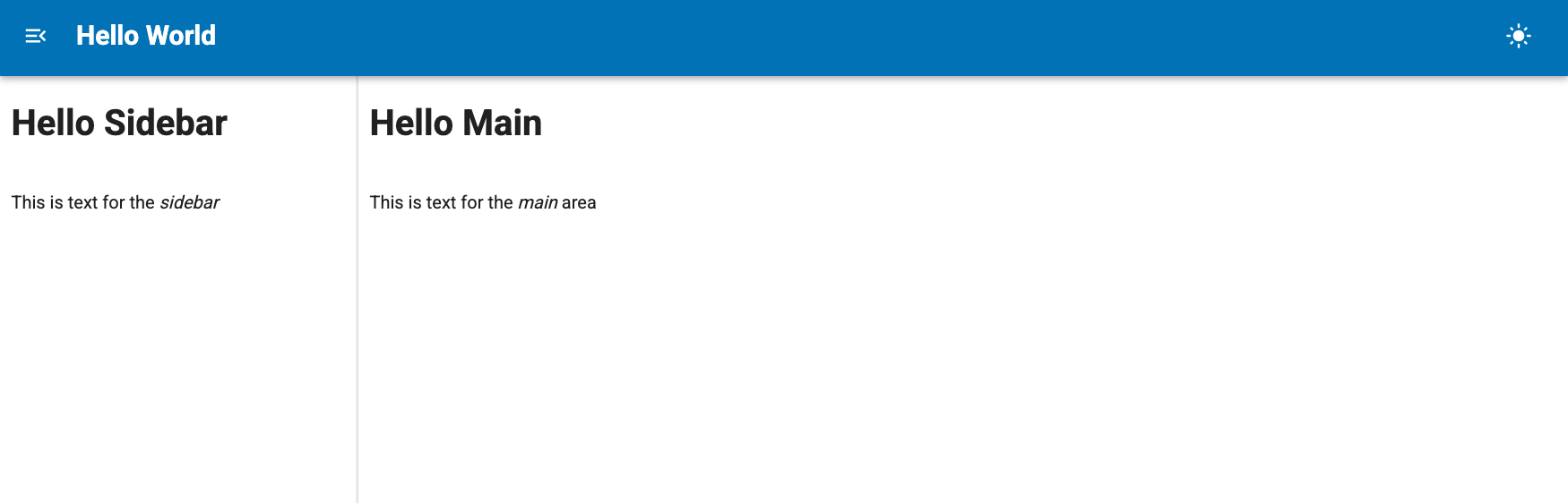
It should resemble the following:
Note
In the code snippet:
pn.ui.Pagedefines the overall layout of the app.titlesets the title shown in the header and in the browser tab.sidebarandmaindesignate content areas for the sidebar and main section, respectively. Both take a list of components.
For additional configuration options, refer to the Page reference guide.
Tip
Panel also ships the classic templates, such as FastListTemplate and the Slides template, in the pn.template namespace.
Displaying a Page in a Notebook#
A Page also renders inline in a notebook, so you can preview the final layout of your app while you develop it. Copy the following two code cells into a notebook:
import panel as pn

pn.extension()
pn.ui.Page(
    title="Hello World",
    sidebar=["# Hello Sidebar", "This is text for the *sidebar*"],
    main=["# Hello Main", "This is text for the *main* area"],
).servable()
Run the cells. The Page is displayed below the second cell, header, sidebar and all.
Because the Page is marked .servable(), you can also serve the notebook with panel serve app.ipynb --dev or open it in the Jupyter Panel Preview.
Tailoring the Page#
Let’s customize the page further. Copy the code below into app.py:
import altair as alt
import pandas as pd
import panel as pn

pn.extension("vega")

ACCENT = "#008080"

image = pn.ui.PNG("https://assets.holoviz.org/panel/tutorials/wind_turbines_sunset.png")

@pn.cache # Add caching to only download data once
def get_data():
    return pd.read_csv("https://assets.holoviz.org/panel/tutorials/turbines.csv.gz")

df = get_data()

top_manufacturers = (
    df.groupby("t_manu").p_cap.sum().sort_values().iloc[-10:].index.to_list()
)
df = df[df.t_manu.isin(top_manufacturers)]
fig = (
    alt.Chart(
        df.sample(5000),
        title="Capacity by Manufacturer",
    )
    .mark_circle(size=8)
    .encode(
        y="t_manu:N",
        x="p_cap:Q",
        yOffset="jitter:Q",
        color=alt.Color("t_manu:N").legend(None),
        tooltip=["t_manu", "p_cap"],
    )
    .transform_calculate(jitter="sqrt(-2*log(random()))*cos(2*PI*random())")
    .properties(
        height="container",
        width="container",
    )
)
plot = pn.ui.Vega(fig, sizing_mode="stretch_both", max_height=800, margin=20)

pn.ui.Page(
    title="Wind Turbine Manufacturers",
    sidebar=[image, "**Note**: Only the 10 Manufacturers with the largest installed capacity are shown in the plot."],
    main=["# Installed Capacity", plot],
    theme_config={"palette": {"primary": {"main": ACCENT}}},
).servable()
Serve the app with:
panel serve app.py --dev
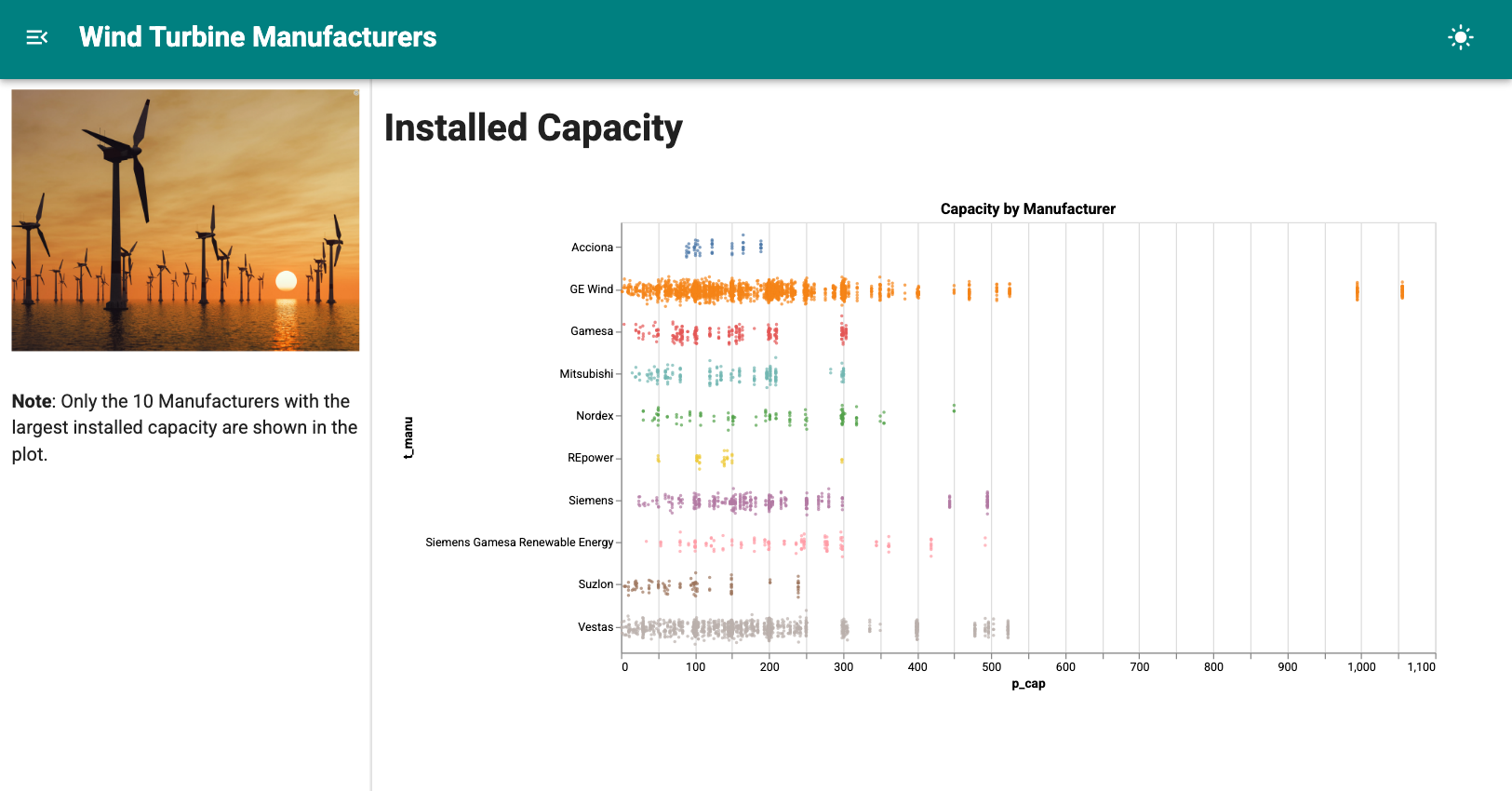
It should appear as shown below. Try toggling the theme button in the upper right corner.
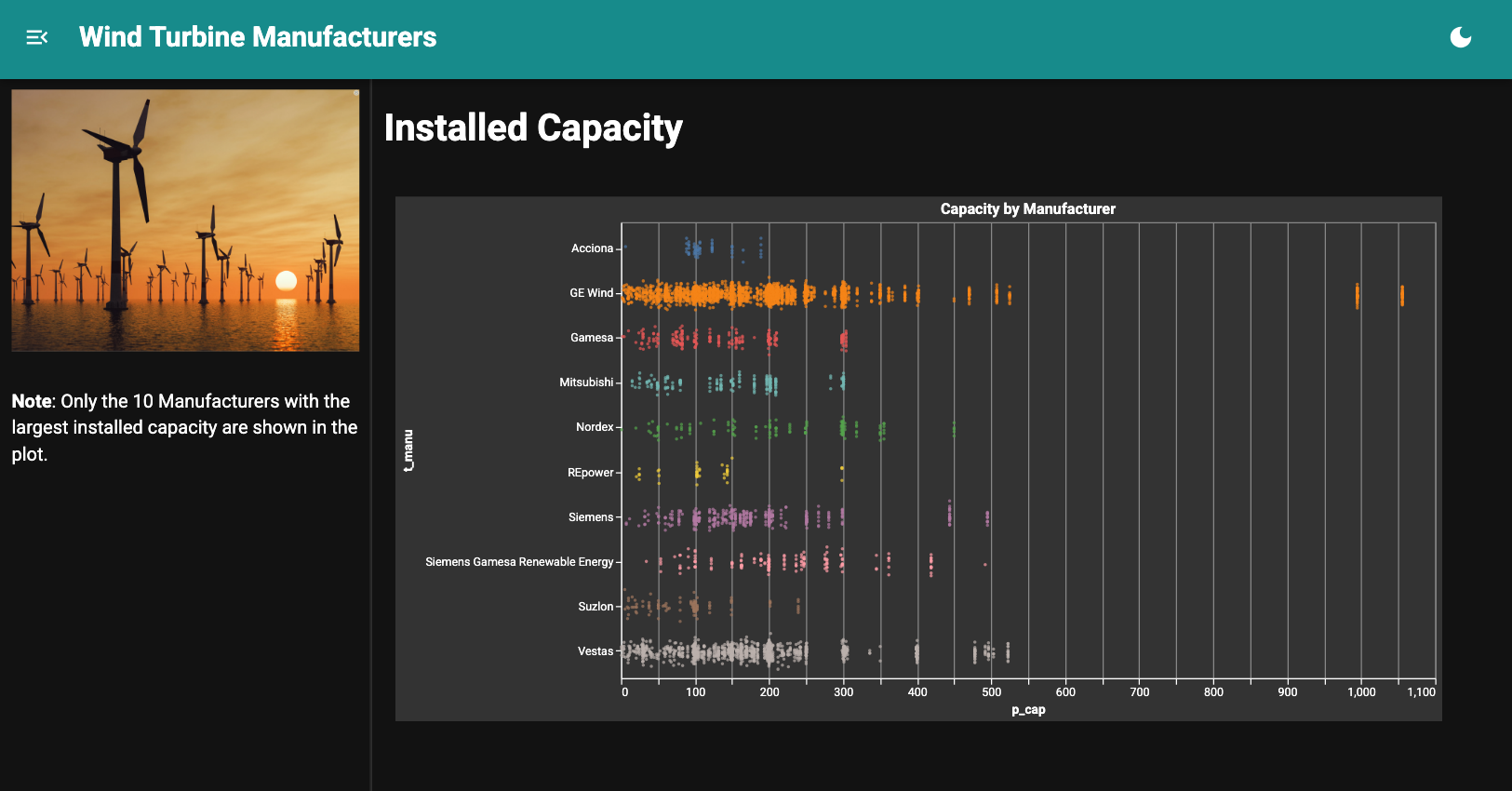
Upon toggling, the app should switch to dark mode:
Note
In the code:
theme_configsets the primary color of the app. The header is drawn in the primary color, and buttons, sliders and other components withcolor="primary"pick it up too. Specify colors as hex codes like"#008080", CSS color names such as"teal"are not supported here.The theme toggle is built into the
Page, so there is no need to add one yourself.The Altair plot switches to a dark theme together with the rest of the app. A
Pagetakes care of theming Altair, Bokeh, hvPlot, Plotly and many other plots for you.
Adding to the Header#
The header has room for a few compact items such as buttons or links. Let’s add a link to the data source, and hide the theme toggle to keep the app in its light theme:
import panel as pn

pn.extension()

source = pn.ui.Button(
    label="Data Source",
    icon="open_in_new",
    href="https://eerscmap.usgs.gov/uswtdb/",
    target="_blank",
    variant="outlined",
    color="light",
)

pn.ui.Page(
    title="Wind Turbine Manufacturers",
    header=[source],
    main=["# Installed Capacity"],
    theme_config={"palette": {"primary": {"main": "#008080"}}},
    theme_toggle=False,
).servable()
Note
headertakes a list of items to display next to the title. The header is a single slim bar, so keep to buttons, links and small indicators.theme_toggle=Falsehides the theme toggle. Usetheme="dark"to start the app in the dark theme instead.
Recap#
In this tutorial, we’ve explored how to structure an app with a Page:
pn.ui.Pagegives your app a header, a sidebar and a main area.The
sidebar,mainandheaderareas take lists of components.A
Pagerenders inline in notebooks, so you can preview your app as you build it.theme_configsets the primary color, and the built-in theme toggle switches between light and dark.The classic templates, like
FastListTemplate, are still available in thepn.templatenamespace.
