

Create Desktop Apps with pywebview#
Convert Panel applications into standalone desktop executables using pywebview and package them for distribution.
Install Dependencies#
pip install panel pywebview pyinstaller
Note
Linux requires additional GTK dependencies. See pywebview installation guide.
Create Your Panel Application#
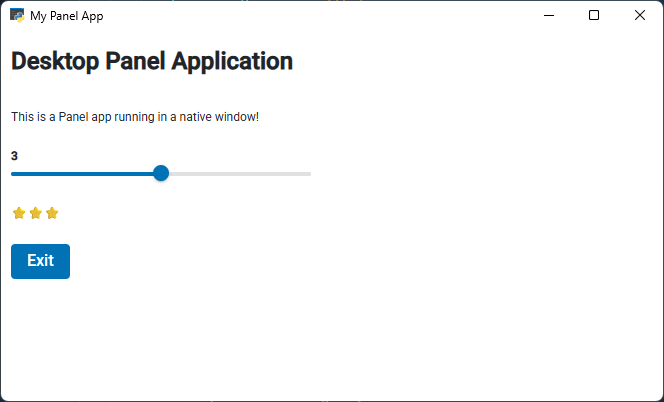
We’ll build a simple Panel application with optional exit functionality:
a slider to choose a number
a corresponding row of ⭐ characters
an Exit button that terminates the desktop application
The full implementation of this Panel app (via a create_app() function) is shown in the complete app.py example in the next section.
Wrap with pywebview#
Create app.py to wrap your Panel application:
import webview
import panel as pn
import threading
import time
import os
import socket

class PanelDesktop:
    """Serve Panel apps as desktop applications using webview."""

    def __init__(self, title="Panel Desktop App", width: int=600, height: int=600):
        self.title = title
        self.width = width
        self.height = height

    @staticmethod
    def _find_free_port():
        """Find a free port on localhost."""
        with socket.socket(socket.AF_INET, socket.SOCK_STREAM) as s:
            s.bind(('', 0))
            s.listen(1)
            port = s.getsockname()[1]
        return port

    def serve(self, func_or_path, port: int=0):
        """Serve a Panel function or file in a desktop window."""
        if not port:
            port = self._find_free_port()
        # Start Panel server in daemon thread
        server_thread = threading.Thread(
            target=lambda: pn.serve(func_or_path, port=port, show=False, autoreload=False),
            daemon=True
        )
        server_thread.start()

        # Create and start webview
        webview.create_window(
            self.title,
            f'http://localhost:{port}',
            resizable=True,
            fullscreen=False,
            width=self.width,
            height=self.height,
            text_select=True)
        webview.start()

def create_app():
    """Example Panel app with exit functionality."""
    pn.extension(design="material")

    pn.pane.Markdown.disable_anchors = True

    slider = pn.widgets.IntSlider(value=3, start=1, end=5)
    stars = pn.bind(lambda n: "⭐" * n, slider)

    def exit_app(event):
        """Exit the desktop application."""
        os._exit(0)
        # an alternative way:
        # import webview
        # webview.windows[0].destroy()

    exit_btn = pn.widgets.Button(label="Exit", on_click=exit_app, color="primary")

    return pn.Column(
        "# Desktop Panel Application",
        "This is a Panel app running in a native window!",
        slider, stars, exit_btn
    )

if __name__ == "__main__":
    desktop = PanelDesktop("My Panel App")
    desktop.serve(create_app)
Note
You can serve an external file instead of a function:
desktop.serve("my_panel_app.py")
Test the Application#
Run:
python app.py
The app should look like:
Verify all functionality works before packaging.
Package for Distribution#
Packaging frameworks by desktop platform:
Windows/Linux: PyInstaller or Nuitka
macOS: py2app
See the pywebview freezing guide for complete platform-specific instructions.
Package for Windows#
Build with PyInstaller:
pyinstaller app.py
The executable will be in the dist folder.
Options:
--debug all- Enable debugging--icon=favicon.ico- Add custom icon (download Panel icon)--noconsole- Hide console window--onefile- Create single executable (makes the loading of the application slow)
Package for MacOS#
On OSX you will need py2app instead of pyinstaller. Begin by generating a setup.py for your application with
py2applet --make-setup app.py
Next build it with:
python setup.py py2app
py2app bundles your local environment, since conda uses features not supported in a packaged application you cannot use a conda environment as your build environment.
Troubleshooting#
Blank window or errors:
Add hidden imports:
--hidden-import=panel --hidden-import=bokehRun without
--noconsoleto see error messages
Create installer for Windows#
For professional distribution, create an installer using InstallForge, NSIS, or Inno Setup.
Alternative: Distribute as UV Tool#
A simple alternative to PyInstaller, would be to distribute the app as a uv tool.
